
Free Chrome Screen Recorder for Instant Sharing
Overview
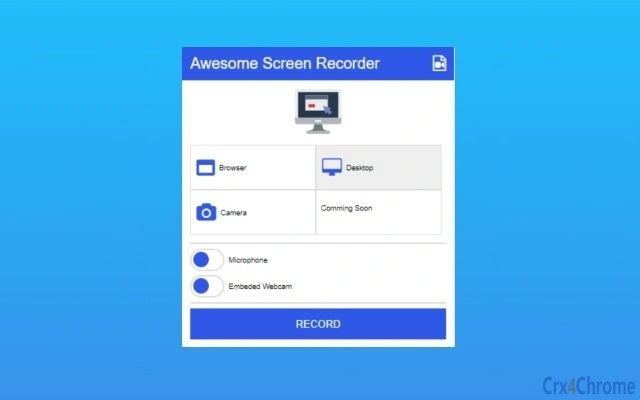
The software is a browser-based screen recording tool designed for users who need to capture content directly from their Chrome browser. It enables recording of desktop screens, individual browser tabs, and webcam footage, making it suitable for creating tutorials, presentations, or quick video updates. The tool supports audio narration through the microphone, allowing users to add voice commentary during recordings. A notable feature is the ability to embed the webcam feed into the screencast, which enhances personalization and engagement in video content.
Target users include educators, content creators, remote workers, and anyone requiring a fast and simple way to produce and share screen videos. The software is built as a Chrome extension, meaning it operates within the browser environment without requiring a full desktop application. This makes it ideal for users who prioritize ease of access and minimal setup. The developer, Tutsmake, has positioned the tool as a free solution with no sign-up required, emphasizing accessibility and immediate usability.
Real-world use cases include recording online lessons, demonstrating software features, creating social media content, or sharing meeting highlights. The integration with Google Drive allows for direct video uploads, streamlining the sharing process. While no detailed system requirements were provided, the tool is compatible with Windows and Mac operating systems, as noted in the official information.
Key Features & Capabilities
- Browser Tab Recording – Capture any open tab in Chrome with full screen or selected area options. Ideal for demonstrating web-based tools or sharing online content.
- Desktop Recording – Record the entire screen or a custom region, useful for showing workflows across multiple applications.
- Webcam Integration – Overlay the webcam feed into the screencast, enhancing personal presence during video explanations.
- Microphone Audio Capture – Record voice commentary in real time using the built-in microphone, improving clarity and context in recordings.
- Google Drive Upload – Seamlessly upload recorded videos directly to Google Drive without leaving the browser.
- Local Video Storage – Save recordings to the local device for offline access and future editing.
- No Sign-Up Required – Begin recording immediately without creating an account or providing personal information.
These features collectively support a streamlined workflow for users who need to produce and distribute screen videos quickly. For example, a teacher can record a lesson in a web-based classroom, add voice narration, include their webcam, and upload the file to Google Drive in under five minutes. Similarly, a support agent might demonstrate a bug fix by recording a browser session and sharing the video instantly with a team.
User Interface, Workflow & Performance
The user interface is designed to be minimal and intuitive, consistent with typical Chrome extension behavior. The recording controls are accessible via a small icon in the browser toolbar, offering one-click access to start, pause, and stop recordings. The interface includes clear visual indicators for recording status, microphone input, and webcam presence.
Navigating the tool is straightforward, with no complex menus or settings required. Users can select their recording mode—tab, desktop, or webcam—before initiating the session. The workflow is optimized for speed, enabling users to begin recording within seconds of installation. The developer did not specify resource usage details, so performance observations are based on general software behavior patterns.
Stability appears to be a focus, given the lightweight nature of the extension (2.1 MB). It is expected to operate smoothly on systems meeting basic browser requirements. However, actual CPU and RAM behavior during recording sessions were not disclosed. The lack of background processes or persistent background services suggests low system impact during idle periods.
Compatibility & System Requirements
The software is compatible with both Windows and Mac operating systems, as confirmed by the developer. It functions exclusively as a Chrome extension, meaning it requires Google Chrome to operate. The extension size is 2.1 MB, indicating a lightweight footprint that should not strain storage or installation time.
Exact system requirements were not listed. The developer did not provide additional system requirements beyond the supported platforms. Compatibility with older versions of Chrome is not specified. Users should ensure their browser is up to date to avoid potential issues. No hardware-specific requirements were mentioned, suggesting the tool is designed to run on standard modern devices.
Pros and Cons
Pros
- Completely free to use with no hidden fees
- No sign-up required—start recording instantly
- Direct integration with Google Drive for easy sharing
- Supports multiple recording modes: tab, desktop, and webcam
- Simple, intuitive interface optimized for browser use
- Lightweight at only 2.1 MB in size
Cons
- Exclusive to Chrome browser—no support for other browsers
- Platform-specific limitations may affect cross-device users
- Exact performance and resource usage details not provided
- Limited to browser-based recording; no native desktop application
- No built-in video editing tools
FAQ Section
Is this software free to use?
Yes, the software is completely free with no cost or subscription required. All features are accessible without payment.
Does it require a Google account to use?
No, users are not required to sign up or create a Google account to record or save videos. Everything works without registration.
Can I record my webcam along with my screen?
Yes, the tool allows users to overlay their webcam feed into the screencast, which is useful for creating personal or instructional videos.
Is the software compatible with Mac and Windows?
Yes, the software supports both Windows and Mac operating systems, provided they are running Google Chrome.
Does it support video editing after recording?
There are no built-in video editing features. Users can save recordings locally or upload them to Google Drive for further processing in external software.
Final Thoughts
For users seeking a fast, no-frills screen recording solution within the Chrome browser, this tool delivers on its core promise. Its ability to record tabs, desktops, and webcams—while supporting voice narration and direct Google Drive uploads—makes it a practical choice for educators, remote teams, and content creators. The absence of sign-up requirements and the lightweight design enhance accessibility and user experience.
While it lacks advanced editing tools and is limited to Chrome, these constraints are balanced by its simplicity and immediate usability. The developer has focused on a narrow but effective use case: quick screen capture and instant sharing. For users who prioritize speed, privacy, and ease of access, this Chrome extension provides a solid, reliable option.
Download Free Chrome Screen Recorder for Instant Sharing now.